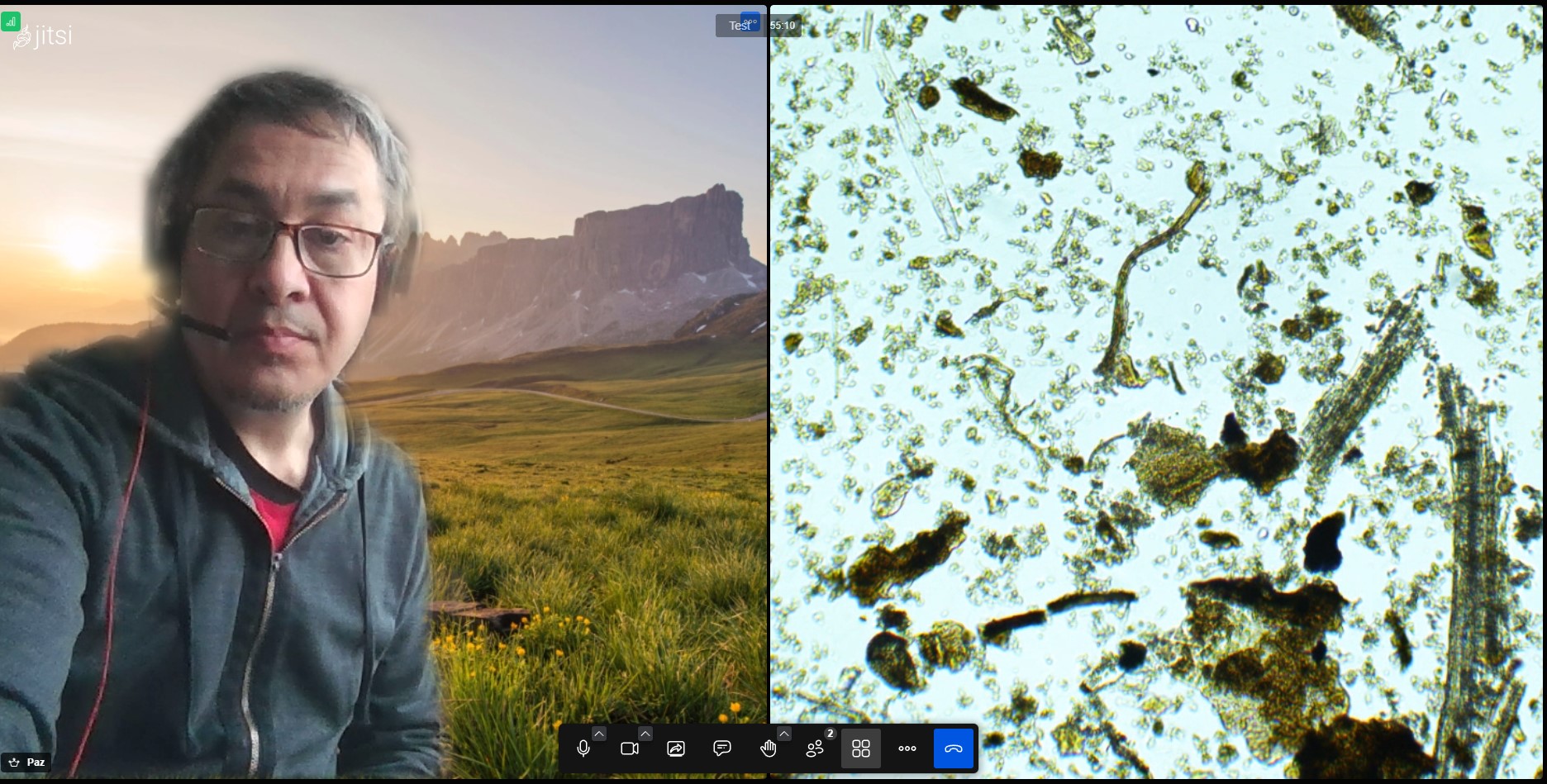
Jitsi is an open-source video conferencing software that we use to have remote microscopy sessions with clients. Learn how to connect your microscope and install the drivers for an OMAX camera.
How to broadcast a microscopy session on Jitsi
This article outlines how to conduct microscopy sessions using Jitsi Meet. Jitsi is an open-source web and native-app based video conferencing system very comparable to Zoom. The advantage is that it requires no app, no membership, and works from any modern browser.
To broadcast a microscopy session, you will need a few extra things besides just Jitsi and a modern device. You will need a microscope with a working USB digital camera connected to a laptop or computer, as well as the SDK drivers. The most common cameras on the market currently are the Omax A35 series. The headset is to correct an issue of audio reflection in this setup, as having a speaker on will create feedback when both windows are open. A headset with a separate mutable microphone can help.
Requirements
- A microscope with a USB digital camera (Omax A35 series recommended)
- Updated drivers including SDK drivers
- A headset with a separate mutable microphone
- A corded USB camera for better positioning
Steps
Step 1-5: Driver Installation
Access the Omax software download page and obtain both the regular drivers and SDK drivers for your camera model. Install the regular driver first, then the SDK, and reboot your machine after installation.
Step 6-10: Initial Setup
Navigate to your Jitsi instance, enter a meeting name, and provide permissions for camera and audio access. Select your headset as the microphone device and position your laptop to show both yourself at the microscope and your workspace.
Step 11-12: Adding the Microscope Feed
Open a second browser tab, rejoin the same meeting, select the microscope camera as your video device, label yourself as "Microscope", mute the microphone, and join. You now have two feeds in the same meeting: one showing you, and one showing the microscope view.
Important Notes
Audio feedback can occur since devices cannot be fully muted. Using a headset (rather than speakers) helps mitigate this issue. If feedback occurs, close one conference window or mute all microphones.